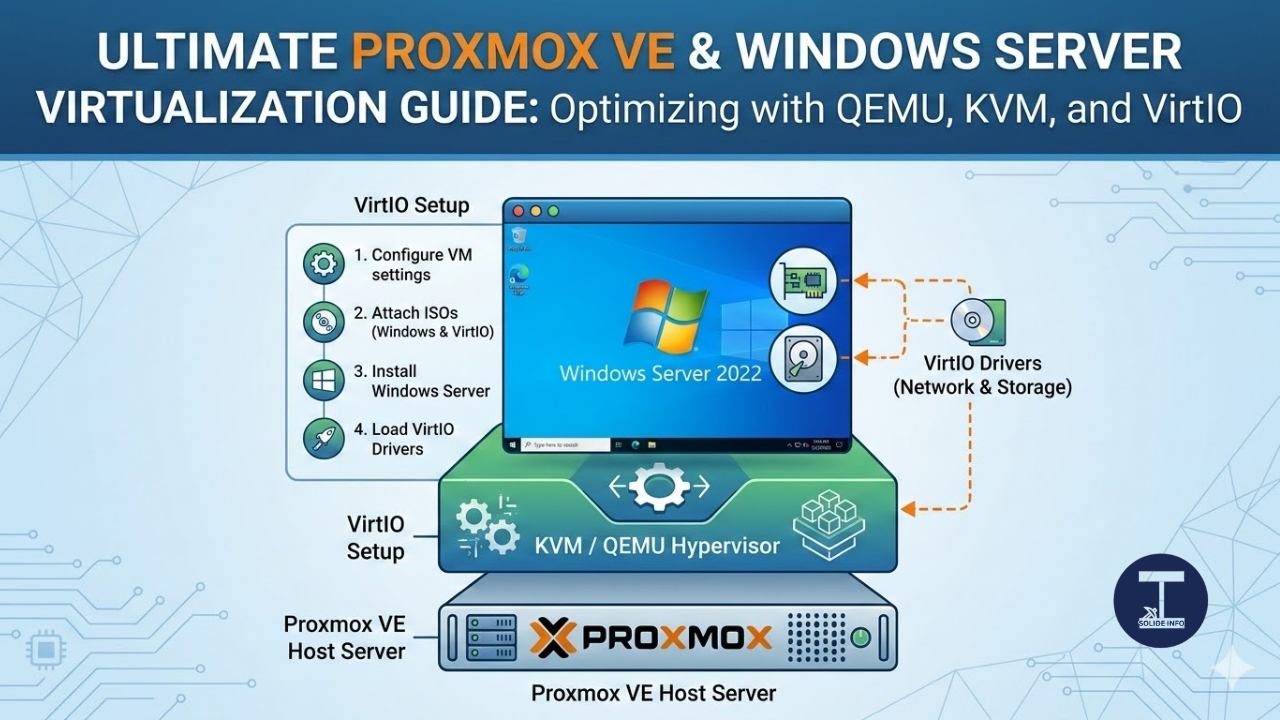
Running Windows Server on Proxmox VE without VirtIO drivers is one of the most common performance killers in self-hosted datacenters today.
Most guides skip the driver stack entirely, leaving engineers with a functional-looking VM that quietly destroys disk I/O throughput and saturates the network adapter with emulated overhead.
If you are deploying Windows Server 2019, 2022, or 2025 on a Proxmox virtual environment, getting the QEMU/KVM paravirtualization layer right from the very first boot is not optional.
This guide covers everything — from ISO staging and VM hardware configuration, to VirtIO driver injection mid-install, post-boot network driver setup, and guest agent activation.
By the end of this article you will have a fully functional, production-hardened Windows Server VM running on Proxmox VE, backed by paravirtualized storage and networking, with zero emulation overhead on critical I/O paths.
The Architecture Behind Proxmox VE and QEMU/KVM You Need to Understand First
Before touching the Proxmox web UI, understanding what is actually happening under the hood saves you from misconfigurations that are painful to reverse in production.
Proxmox VE is a Debian-based hypervisor platform that wraps KVM (Kernel-based Virtual Machine) and QEMU (Quick Emulator) into a unified management layer.
KVM runs directly in the Linux kernel as a loadable module. It converts the Linux host into a Type-1-adjacent hypervisor by giving each VM direct access to CPU virtualization extensions (Intel VT-x or AMD-V).
QEMU handles device emulation. When a VM needs to talk to storage, network, or display hardware, QEMU either emulates legacy hardware (slow, high-overhead) or exposes VirtIO paravirtualized devices (fast, near-native performance).
The critical architectural distinction is this:
Emulated devices (IDE, E1000 NIC) → QEMU software translation → High CPU overhead, low throughput
Windows Server does not include VirtIO drivers out of the box. This is why you need the VirtIO-Win ISO published by Red Hat alongside your Windows Server ISO — to inject the correct paravirtualized drivers during and after installation.
Proxmox itself adds a management API, web UI, storage abstraction (LVM, ZFS, Ceph, NFS, iSCSI), clustering support, and live migration on top of QEMU/KVM.
The result is an enterprise-grade, open-source hypervisor stack that competes directly with VMware ESXi and Hyper-V for most production workloads.
Everything You Need Before Starting — The Production Prerequisites Checklist
Rushing into a Proxmox Windows Server deployment without staging the right resources first results in interrupted installations, missing drivers mid-setup, and VMs that boot with no network access.
Here is the exact checklist before you open the Proxmox web UI:
Hardware requirements (minimum for production use):
CPU with hardware virtualization extensions enabled in BIOS/UEFI (Intel VT-x or AMD-V)
16 GB RAM minimum (32 GB+ recommended for Windows Server with active roles)
100 GB+ fast storage for the VM disk (SSD-backed LVM or ZFS preferred)
IOMMU enabled in BIOS if you plan PCIe passthrough
Software and ISO files you need staged in Proxmox storage before starting:
Windows Server 2019, 2022, or 2025 ISO (from MSDN, Volume Licensing, or Evaluation Center)
VirtIO-Win ISO from the Fedora Project (latest stable from https://fedorapeople.org/groups/virt/virtio-win/direct-downloads/stable-virtio/)
Proxmox VE version: 8.x recommended (PVE 7.x works but lacks some minor UI improvements)
Network planning:
Decide if this VM gets a bridged interface (vmbr0) for direct LAN access or uses NAT via a second bridge
Have a static IP or DHCP reservation ready for the Windows Server post-boot
Storage pool: Confirm you have a storage pool configured in Proxmox that accepts ISO images (typically “local” for ISOs and “local-lvm” or ZFS pool for VM disks)
Sponsored
Uploading ISOs to Proxmox Storage — Do This Before Creating Any VM
The Proxmox web interface handles ISO uploads cleanly, but many engineers waste time uploading to the wrong storage location.
ISOs must land in a storage pool that has the Content Type: ISO Image enabled. In default Proxmox installations, this is the local storage (backed by /var/lib/vz/template/iso/).
Navigate to Datacenter → Storage → local → ISO Images → Upload.
Upload both files in sequence:
Uploading the Windows Server ISO to the Proxmox local storage ISO image section
Uploading the VirtIO-Win ISO to Proxmox storage — this ISO contains all paravirtualized drivers for Windows guests
If you prefer CLI upload over a slow browser session, use this on the Proxmox host directly:
# Upload Windows Server ISO directly to Proxmox ISO storage via CLI
wget -O /var/lib/vz/template/iso/windows-server-2022.iso \
  "https://your-internal-mirror-or-nfs-path/windows-server-2022.iso"

# Upload VirtIO Win ISO (replace with latest stable version number)
wget -O /var/lib/vz/template/iso/virtio-win-0.1.240.iso \
  "https://fedorapeople.org/groups/virt/virtio-win/direct-downloads/stable-virtio/virtio-win.iso"

# Verify both ISOs are registered in Proxmox storage
pvesh get /nodes/$(hostname)/storage/local/content | grep iso
After the uploads complete, verify both ISOs appear in the storage listing before proceeding to VM creation. This is a step many engineers skip, only to find mid-installation that the VirtIO ISO is missing from the drive selection dropdown.
Creating the Windows Server VM in Proxmox VE — Every Setting Matters
Sponsored
This is where most tutorials go wrong. The default Proxmox VM creation wizard uses emulated devices unless you explicitly override them. Leaving defaults in place means installing Windows Server on an IDE-emulated disk controller with an E1000 NIC.
That works. But it performs like 2004.
Here is the correct hardware configuration for a production Windows Server VM on Proxmox:
General Tab:
VM Name: Use a descriptive hostname (e.g., winserver2022-prod-01)
VM ID: Any available ID (e.g., 100)
OS Tab:
Guest OS Type: Microsoft Windows
Version: 11/2022/2025 (or 10/2019/2016 depending on your target)
System Tab:
Machine Type: q35 (modern PCIe bus, required for TPM 2.0 and NVMe)
BIOS: OVMF (UEFI) for Windows 11/2025, SeaBIOS acceptable for 2019
TPM State: Add if deploying Windows Server 2025 or for compliance requirements
SCSI Controller: VirtIO SCSI (this is the critical setting — do NOT leave it as LSI Logic)
Disk Tab:
Bus/Device: VirtIO Block or SCSI via VirtIO SCSI controller
Cache: Write Back for best performance on trusted storage, None for ZFS (ZFS handles its own caching)
Discard: Enable if using SSD-backed storage (enables TRIM pass-through)
Size: 80 GB minimum for a base Windows Server install, 120+ GB for production roles
CPU Tab:
Sockets: 1 (scale cores first before adding sockets to avoid NUMA misconfiguration)
Cores: 4 minimum, 8 for active workloads
CPU Type: host (passes through all host CPU features for maximum performance — only use a generic type if live migration across heterogeneous CPU hosts is required)
Memory Tab:
RAM: 8192 MB minimum, enable Ballooning (requires guest agent to be installed later)
Network Tab:
Bridge: vmbr0 (or your configured bridge)
Model: VirtIO (paravirtualized) — critical, do NOT use E1000 for production
CD/DVD Drives:
Drive 0 (ide2 or sata): Windows Server ISO
Drive 1 (ide3 or sata1): VirtIO-Win ISO — this second CD drive is mandatory
Adding the second CD drive to the VM hardware configuration in Proxmox VE — this will hold the VirtIO-Win ISO
Selecting the VirtIO-Win ISO for the second CD drive — assign it a unique drive ID in Proxmox hardware config
Both CD drives visible in the Proxmox VM hardware tab — Windows Server ISO on IDE0, VirtIO-Win ISO on IDE1
Set the Boot Order correctly — the VM must boot from the Windows Server ISO on first boot:
Setting Start at Boot to Yes in Proxmox VM options and confirming boot order with CD drive first
Sponsored
Starting the VM and Getting Into the Windows Server Installer
With both ISOs attached and the boot order set, it is time to start the VM.
Right-click the VM in the Proxmox left sidebar, then select Start. Alternatively, use the Start button in the VM detail view.
Starting the Windows Server VM from the Proxmox right-click context menu
Once the VM starts, click the Console button in the top right of the Proxmox VM view to open the noVNC graphical console.
Opening the Proxmox noVNC console — this gives graphical access to the VM for the setup process
You will see the UEFI/BIOS POST screen. Watch for the boot device prompt:
Press any key to boot from the CD/DVD drive — you have about 5 seconds before the VM attempts to boot from disk
The UEFI boot menu may appear first. Select the option to boot from your Windows Server ISO:
Selecting Boot from ROM / DVD drive option in the UEFI boot menu
After the UEFI handoff, the Windows Setup splash screen appears:
Windows Server installation wizard loading — the setup process is now running from the ISO
The Critical Step — Installing Windows Server with VirtIO Storage Driver Injection
This is the step where most deployments fail silently or fall back to emulated hardware.
When the Windows Setup wizard asks “Which type of installation do you want?”, always select Custom: Install Windows only (advanced). Never choose Upgrade for a fresh deployment.
Selecting the “Windows Server with Desktop Experience” option — the second GUI option gives you the full graphical shell
Accept the license terms:
Accepting the Windows Server license agreement to proceed with installation
Select Custom: Install Windows only (advanced):
Choosing the custom/advanced installation option — required to load VirtIO drivers and partition the disk manually
At the “Where do you want to install Windows?” screen, you will see zero drives listed. This is expected and correct behavior.
Windows does not have a VirtIO SCSI driver built into the installer. It cannot see the virtual disk until you inject the driver manually.
This is the most important step in this entire guide.
Click Load driver:
The “Where do you want to install?” screen shows no drives — click Load Driver to inject the VirtIO SCSI controller driver
Click Browse in the Load Driver dialog, then navigate to the VirtIO-Win CD drive (typically Drive E: or F:):
Browsing to the VirtIO-Win ISO drive — open the partition to navigate to the correct driver folder
Navigate to this path inside the VirtIO-Win ISO:
[VirtIO Drive]:\vioscsi\2k19\amd64\
For different Windows versions, the folder changes:
Windows Server 2022 → vioscsi\2k22\amd64\
Windows Server 2016 → vioscsi\2k16\amd64\
Windows 11 → vioscsi\w11\amd64\
Navigating to vioscsi → 2k19 → amd64 inside the VirtIO-Win ISO — adjust the folder name based on your Windows Server version
Select the detected driver from the list:
Selecting the Red Hat VirtIO SCSI pass-through controller driver from the driver list
Click Next to install it. The wizard will immediately load the SCSI driver into memory:
Confirming driver selection — Windows Setup loads the VirtIO SCSI driver into the installer environment
After driver injection, the VirtIO virtual disk appears in the drive list:
Success — the VirtIO virtual disk is now visible and available for Windows Server installation
Select the disk and click Next. The Windows Server installation begins:
Windows Server installation is now copying files to the VirtIO virtual disk — the install will complete and reboot automatically
The installation process takes 10–25 minutes depending on host storage speed. The VM will reboot several times automatically during this phase. Remove the boot priority from the CD drive after first reboot if Windows Setup loops back to the installer — or simply wait, as the installer manages boot sequencing automatically.
Sponsored
Post-Installation — Unlocking the Console and Installing Remaining VirtIO Drivers
When Windows Server finishes installing and boots to the login screen, you will hit an immediate problem in the Proxmox console.
Sending Ctrl+Alt+Del from your keyboard inside the noVNC console will trigger the key combination on your host machine, not the VM. This locks your workstation instead of unlocking the Windows VM.
Proxmox has a built-in workaround for this:
Use the Proxmox console’s built-in Ctrl+Alt+Del button (top toolbar) instead of the keyboard shortcut — avoids locking your host
After logging in, open Device Manager (right-click Start → Device Manager). You will see multiple devices listed under Other Devices with yellow warning triangles. These are the remaining VirtIO devices that need drivers.
Device Manager showing unknown devices after fresh Windows Server install — these are the VirtIO network adapter, balloon driver, and other paravirtualized components needing drivers
Right-click the first unknown device and select Update Driver → Browse my computer for drivers.
Point the search path to the root of the VirtIO-Win CD drive (Drive E: or F:), and check Include subfolders:
Pointing the Windows driver search to the root of the VirtIO-Win ISO drive with “Include subfolders” checked
Windows will automatically find and install the correct driver from the VirtIO-Win ISO. The most critical driver to confirm installed correctly is the Red Hat VirtIO Ethernet Adapter — this is your VM’s network interface:
Red Hat VirtIO Ethernet Adapter driver installed successfully — the VM now has network connectivity via the paravirtualized NIC
Repeat the same process for all remaining yellow-triangle devices. The full list of VirtIO components to install includes:
Device
VirtIO Driver
Purpose
VirtIO SCSI Controller
vioscsi
Disk controller (already installed during setup)
VirtIO Ethernet Adapter
netkvm
Paravirtualized NIC
VirtIO Balloon Driver
balloon
Dynamic memory management
VirtIO Serial Driver
vioserial
Host-guest communication channel
VirtIO RNG
viorng
Hardware entropy source
QXL / Virtio-GPU
qxldod
Display adapter
Finally, install the QEMU Guest Agent. Navigate to the VirtIO-Win CD drive root and double-click the guest agent installer:
Installing the QEMU Guest Agent from the VirtIO-Win ISO root — double-click the installer and follow the wizard
The QEMU Guest Agent (qemu-ga) enables critical Proxmox-to-VM communication including:
File-system-aware snapshots (quiesced snapshots via VSS)
IP address reporting in the Proxmox web UI
Graceful shutdown and reboot from Proxmox interface
Memory balloon statistics
After installation, enable the Guest Agent in Proxmox VM Options:
# Enable QEMU Guest Agent via Proxmox CLI (replace 100 with your VM ID)
qm set 100 --agent enabled=1

# Verify guest agent communication is active
qm agent 100 ping
Sponsored
Performance Tuning — Squeezing Maximum Throughput from Your Windows Server VM
A correctly installed Windows Server VM on Proxmox VE with VirtIO drivers should achieve near-native I/O performance. But several additional tuning parameters push throughput further.
CPU Pinning for Latency-Sensitive Workloads:
If this Windows Server VM runs a database, real-time analytics engine, or latency-sensitive application, pin the VM’s vCPUs to dedicated physical cores.
# Pin VM 100's vCPUs to physical cores 4-7 (isolate from host processes)
# First isolate the CPUs from the host via /etc/default/grub (add isolcpus=4-7)
# Then apply CPU affinity:
qm set 100 --cpuunits 10000
taskset -c 4-7 $(pgrep -f "kvm.*100")

# Or use the Proxmox CPU affinity config:
echo "args: -cpu-mask 4-7" >> /etc/pve/qemu-server/100.conf
Storage Performance Verification:
After installation, verify you are getting VirtIO performance and not emulated disk performance from inside the Windows VM using PowerShell:
# Run inside Windows Server VM — check disk controller type
Get-WmiObject Win32_SCSIController | Select-Object Name, DriverName

# Expected output for correctly configured VM:
# Name         : Red Hat VirtIO SCSI pass-through controller
# DriverName   : vioscsi

# Run a quick disk benchmark via PowerShell
$disk = New-Object System.IO.FileStream("C:\testfile.dat", [IO.FileMode]::Create)
$buffer = New-Object byte[](1MB)
$timer = [System.Diagnostics.Stopwatch]::StartNew()
for ($i = 0; $i -lt 1000; $i++) { $disk.Write($buffer, 0, $buffer.Length) }
$timer.Stop()
$disk.Close()
Remove-Item "C:\testfile.dat"
Write-Host "Sequential Write: $([math]::Round(1000/$timer.Elapsed.TotalSeconds, 2)) MB/s"
Network Offload Settings:
VirtIO-net supports hardware-level offloading. Verify it is active from within the Windows Server guest:
# Check network adapter offload settings in Windows Server
Get-NetAdapterAdvancedProperty -Name "Ethernet" |
  Where-Object {$_.DisplayName -match "Offload|Checksum|Segmentation"} |
  Select-Object DisplayName, DisplayValue

# Enable Large Send Offload if not active:
Set-NetAdapterAdvancedProperty -Name "Ethernet" -DisplayName "Large Send Offload V2 (IPv4)" -DisplayValue "Enabled"
Huge Pages (hugepages) for Memory-Intensive Windows VMs:
# On Proxmox host — enable 2MB hugepages for a memory-intensive Windows Server VM
# Calculate: (VM RAM in GB * 1024) / 2 = number of 2MB hugepages
# Example: 32GB VM = 16384 hugepages
echo 16384 > /proc/sys/vm/nr_hugepages

# Make persistent:
echo "vm.nr_hugepages = 16384" >> /etc/sysctl.d/99-hugepages.conf

# Apply to specific VM in config:
echo "hugepages: 1" >> /etc/pve/qemu-server/100.conf
Automating Windows Server VM Provisioning on Proxmox with API and Terraform
Manually creating VMs through the Proxmox web UI works for initial deployments. In production environments with multiple Windows Server VMs, automation is mandatory.
Proxmox exposes a full REST API on port 8006. Everything you can do through the UI can be scripted.
Provisioning a Windows Server VM via the Proxmox API with Python:
#!/usr/bin/env python3
"""
Proxmox VE Windows Server VM Provisioner
Requires: proxmoxer library (pip install proxmoxer requests)
"""

from proxmoxer import ProxmoxAPI
import time

# Connect to Proxmox API
proxmox = ProxmoxAPI(
    'proxmox-host.yourdomain.com',
    user='root@pam',
    token_name='automation-token',
    token_value='YOUR-API-TOKEN-HERE',
    verify_ssl=False  # Use True with valid cert in production
)

NODE = 'pve'         # Your Proxmox node name
VMID = 200           # VM ID to create
STORAGE = 'local-lvm'  # Storage pool for VM disk
WIN_ISO = 'local:iso/windows-server-2022.iso'
VIRTIO_ISO = 'local:iso/virtio-win-0.1.240.iso'

# Create the VM with production-grade settings
proxmox.nodes(NODE).qemu.create(
    vmid=VMID,
    name='winserver2022-auto-01',
    ostype='win11',           # win11 covers Server 2022 too
    machine='q35',
    bios='ovmf',
    cpu='host',
    cores=4,
    sockets=1,
    memory=8192,
    balloon=4096,             # Min memory for balloon driver
    agent='enabled=1',        # QEMU Guest Agent
    scsi0=f'{STORAGE}:80,format=raw,cache=writeback,discard=on',  # VirtIO disk
    scsihw='virtio-scsi-pci',
    ide2=f'{WIN_ISO},media=cdrom',
    ide3=f'{VIRTIO_ISO},media=cdrom',
    net0='virtio,bridge=vmbr0,firewall=1',
    efidisk0=f'{STORAGE}:4,efitype=4m,pre-enrolled-keys=1',  # UEFI EFI disk
    boot='order=ide2;scsi0',
    onboot=1
)

print(f"VM {VMID} created successfully. Starting in 5 seconds...")
time.sleep(5)

# Start the VM
proxmox.nodes(NODE).qemu(VMID).status.start.post()
print(f"VM {VMID} is starting. Connect to console to complete Windows setup.")
Terraform provider for Proxmox (bpg/proxmox) is the recommended IaC approach for teams already using Terraform:
After Windows Server installation is complete via automation, you can sysprep the VM, convert it to a Proxmox template, and use qm clone to rapidly spin up new Windows Server instances from that golden image in under 60 seconds.
Sponsored
Proxmox Windows Server in Production — Security Hardening You Cannot Skip
Deploying Windows Server on Proxmox without addressing the security layer between the hypervisor and the guest is an incomplete deployment.
Proxmox Firewall for VM Network Isolation:
# Enable Proxmox firewall at the datacenter and VM level
# /etc/pve/firewall/cluster.fw
pvesh set /cluster/firewall/options --enable 1

# VM-level firewall rules (restrict inbound to specific management IPs only)
# /etc/pve/firewall/100.fw
cat >> /etc/pve/firewall/100.fw << 'EOF'
[OPTIONS]
enable: 1
policy_in: DROP
policy_out: ACCEPT

[RULES]
# Allow RDP from management subnet only
IN ACCEPT --source 10.0.1.0/24 --dport 3389 --proto tcp
# Allow WinRM for remote management
IN ACCEPT --source 10.0.1.0/24 --dport 5985:5986 --proto tcp
# Allow ICMP
IN ACCEPT --proto icmp
EOF
Snapshot before any major change — a Proxmox snapshot with Guest Agent active creates a VSS-consistent point-in-time recovery for Windows Server:
# Create a VSS-consistent (file-system frozen) snapshot via Proxmox CLI
qm snapshot 100 pre-windows-update --description "Before KB5034441 patch" --vmstate 0

# List snapshots for VM 100
qm listsnapshot 100

# Rollback if needed (within seconds):
qm rollback 100 pre-windows-update
Audit logging — enable Proxmox task logging and correlate with Windows Security Event Log for a unified audit trail. Windows Server on Proxmox should be configured to ship Security Event Log (specifically Event IDs 4624, 4625, 4648, 4672, 7045) to your SIEM via Windows Event Forwarding (WEF) or a Sysmon-enhanced endpoint agent.
For teams integrating with a Threat Intelligence Platform (TIP) such as MISP or OpenCTI, Proxmox VM network traffic should be mirrored to a monitoring port and IoCs (IP addresses, domain names hitting the Windows Server VM) should be ingested automatically via the MISP API for correlation against active threat actor infrastructure.
Troubleshooting the Most Common Proxmox Windows Server Installation Failures
Problem: Windows Setup shows “No drives found” even after loading the VirtIO driver
This almost always means the wrong driver subfolder was selected. Verify:
You are pointing to vioscsi\ not viostor\ (viostor is the older, slower IDE-mode VirtIO driver — avoid it)
The architecture folder matches your Windows version (amd64 for 64-bit, not x86)
The VirtIO-Win ISO version supports your Windows Server version (use the latest ISO)
Problem: VM boots to black screen after Windows Server installation
Check the boot order in Proxmox VM Options. After installation, the VM must boot from the disk (scsi0), not the CD drive. Disable or remove the CD boot priority after installation completes.
Problem: Network adapter shows “Unknown Device” in Device Manager
The VirtIO Net driver (netkvm) was not installed. Browse the VirtIO-Win CD from Device Manager → Update Driver for the unknown Ethernet device, pointing to the NetKVM\2k19\amd64\ folder.
Problem: Proxmox reports “guest agent not running” after installation
Either the guest agent installer was not run, or the Windows Firewall is blocking the virtio-serial communication channel. Verify the QEMU Guest Agent Windows service is running:
# Check guest agent service status from inside Windows VM
Get-Service -Name "QEMU-GA" | Select-Object Name, Status, StartType

# If not running:
Start-Service -Name "QEMU-GA"
Set-Service -Name "QEMU-GA" -StartupType Automatic
Problem: Poor disk performance despite VirtIO setup
Confirm the cache=writeback parameter is set on the disk. On ZFS storage, use cache=none instead (ZFS has its own write caching via ARC). Also verify the Windows Server disk was not partitioned as MBR inside a q35/UEFI machine — this causes silent performance degradation.
Problem: VM freezes during live migration
If the Windows Server VM was configured with CPU type host, live migration to a node with a different CPU generation will fail. Use a specific CPU type like x86-64-v3 or Cascadelake-Server for cross-node migrations.
Frequently Asked Questions — Proxmox Windows Server Deployments
Sponsored
Can I run Windows Server 2025 on Proxmox VE?
Yes. Use machine type q35, BIOS OVMF, OS type win11 (Proxmox uses this for all recent Windows Server versions), and add a TPM 2.0 device. VirtIO-Win drivers from 2023+ support Windows Server 2025.
Is Proxmox VE free for production use?
Proxmox VE is open-source and free to download and use. The subscription is optional and provides access to the stable enterprise repository and commercial support. The no-subscription repository is fully functional but may include slightly less stable package updates.
How does Proxmox compare to VMware vSphere for Windows Server workloads?
For most Windows Server workloads, Proxmox VE with VirtIO drivers delivers comparable I/O performance to vSphere. vSphere leads in enterprise ecosystem integration (vSAN, NSX-T, vCenter orchestration) and OEM hardware certification. Proxmox leads in cost (no licensing fees), flexibility (ZFS integration, Ceph-native clustering), and API-driven automation.
What is the maximum number of vCPUs I can assign to a Windows Server VM on Proxmox?
Proxmox supports up to 768 vCPUs per VM (QEMU limit). Windows Server 2022 Datacenter Edition supports up to 2048 logical processors. Practically, vCPU count should not exceed 2x the physical core count of the host to avoid vCPU scheduling contention.
How do I back up Windows Server VMs on Proxmox?
Use Proxmox Backup Server (PBS) for deduplicated, encrypted, incremental backups. With the QEMU Guest Agent active, backups are VSS-consistent (no data corruption in SQL Server or AD database files). Schedule via vzdump or the PBS web interface.
Can I do live migration of a Windows Server VM between Proxmox nodes?
Yes, provided both nodes share the same storage (Ceph, NFS, or iSCSI), same network bridges, and compatible CPU types. Live migration with RAM included (vmstate) results in zero-downtime transfer.
Should I use VirtIO Block or VirtIO SCSI for Windows Server?
Use VirtIO SCSI via the virtio-scsi-pci controller for multi-disk deployments and production workloads. VirtIO Block is simpler (one device per controller) but lacks SCSI command support needed for proper disk management. VirtIO SCSI also supports TRIM/UNMAP passthrough natively.
Sponsored
Why Getting Proxmox Right the First Time Saves Weeks of Rework
Every hour spent deploying Windows Server on emulated devices instead of VirtIO is an hour of accumulated I/O debt your production workloads will eventually collect.
The Proxmox VE + QEMU/KVM stack is not a compromise hypervisor. With the VirtIO driver stack correctly installed, the QEMU Guest Agent running, and the VM hardware configured for q35/UEFI, you have a production-grade virtualization platform that handles Windows Server workloads at near-native performance — without a VMware licensing invoice.
The steps in this guide — from VirtIO ISO staging through driver injection, network adapter activation, guest agent configuration, and post-install performance tuning — represent the exact workflow used in production datacenters running Windows Server 2019 and 2022 on Proxmox at scale.
The Proxmox virtual environment is a platform worth the initial learning investment. Nail the VirtIO driver stack on day one, and every subsequent Windows Server VM deployment on Proxmox becomes a repeatable, automatable, sub-60-minute operation from ISO to production-ready workload.
We use cookies to ensure that we give you the best experience on our website. If you continue to use this site we will assume that you are happy with it.